How to launch your freelance website with GreenGeeks (step‑by‑step 2026)
Launching your freelance website should feel like progress, not like a technical nightmare. Many freelancers postpone this step for weeks because hosting, domains and WordPress look complex from the outside. Meanwhile, potential clients are still judging them on a weak website or only on social media.
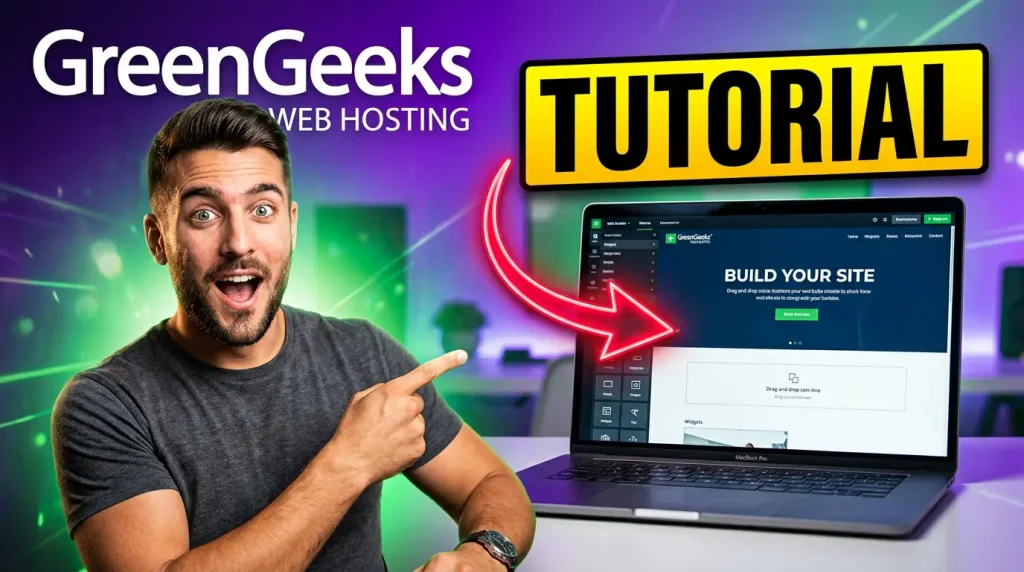
This guide walks you through every step to get a professional WordPress portfolio online with GreenGeeks in one focused session. No coding, no fluff, and no unnecessary jargon. GreenGeeks is built on fast LiteSpeed servers and includes free SSL, daily backups and 24/7 support, which makes it a solid choice for freelancers who want something reliable but still affordable.
You can always improve your design later. What matters now is having a clean, fast and trustworthy website that you are not ashamed to send to clients.
Overview: what you will do
Here is the full process at a glance:
| step | goal | time needed (approx.) |
|---|---|---|
| 1 | Choose your GreenGeeks plan | 3 minutes |
| 2 | Register your domain | 5 minutes |
| 3 | Create and configure your account | 5 minutes |
| 4 | Install WordPress with one click | 5 minutes |
| 5 | Set the basic WordPress settings | 7 minutes |
| 6 | Install a clean, fast theme | 5 minutes |
| 7 | Create your 5 core freelance pages | 10 to 20 minutes |
You can do this in a single session, or in two shorter sessions if you prefer to work in sprints.
What you need before you start
You do not need to be a developer. You only need:
- A domain name idea (your name, your studio, or a simple name that describes your service)
- A professional email address for your hosting account
- A payment method for your plan
- Around 30 to 60 minutes of focused time
GreenGeeks provides an account dashboard, a one‑click WordPress installer and free SSL, so you do not have to handle low‑level server configuration yourself.
Step 1: choose your GreenGeeks plan
When you land on the GreenGeeks pricing page, you see three shared hosting plans.
| profile | plan to pick | why it fits freelancers |
|---|---|---|
| You only host your own website | Lite | Cheapest way to launch one portfolio site |
| You plan to host client sites too | Pro | Unlimited websites and better performance |
| You handle larger or ecommerce projects | Premium | More resources and advanced features |
For most active freelancers, the Pro plan is the best starting point. It supports unlimited websites, better performance and extra tools such as on‑demand backups and a WordPress repair tool on some stacks.
If you are absolutely sure you will only ever host one website, the Lite plan is enough to start. You can upgrade later if needed.
Step 2: choose and register your domain
With an annual plan or longer, GreenGeeks includes a free domain for the first year for popular extensions such as .com, .net, .org and others.
A few practical rules for a freelance domain:
- Keep it short, simple and easy to pronounce
- Avoid numbers and hyphens if possible
- Use .com if it is available
- Use your own name if you sell yourself as an expert
- Use a brand name if you plan to grow into a studio or agency
Examples:
| approach | examples |
|---|---|
| personal brand | janedoecreative.com, alexsmith.dev |
| studio name | brightfreelancestudio.com, pixelcraftstudio.com |
| service‑focused | fastclientsites.com, seocopyforfounders.com |
Type your chosen name into the domain field on GreenGeeks, confirm availability, and add it to your order.
Step 3: complete your GreenGeeks account setup
During checkout, pay attention to three things:
- Billing term
- 12 months: more flexible, higher monthly cost
- 24 or 36 months: lower monthly cost, longer commitment
- Included features
All shared plans include a free SSL certificate, daily backups, and a free domain for the first year when you choose an annual term or longer. - Optional add‑ons
GreenGeeks may offer security or extra backup add‑ons. These can be useful later, but you do not need them to launch. Start lean and add only what you really use.
When your purchase is complete, you will receive a welcome email with:
- A link to your account dashboard (cPanel)
- Your login details
- A summary of your plan
From here, you are ready to install WordPress.
Step 4: log in to cPanel and find WordPress
Open the welcome email and click the link to your GreenGeeks cPanel. Log in with the credentials that were sent to you.
At first, cPanel may look busy, but you can ignore almost everything. For a new freelance website, you only need the Softaculous Apps Installer, which is where you will install WordPress with one click.
Use the search bar at the top of cPanel and type “WordPress”. You should see a “WordPress” icon under Softaculous or a similar installer section.
Checklist:
- Logged into cPanel
- Found “Softaculous” or “WordPress Installer”
- Ready to click “Install”
Step 5: install WordPress in one click
Click the WordPress icon in Softaculous, then click the “Install Now” button.
Fill the form fields like this:
| field | what to select |
|---|---|
| protocol | https:// (not http://) |
| domain | your new domain |
| directory | leave empty (this installs WordPress at the main domain) |
| site name | your name or business name |
| site description | a short sentence describing what you do |
| admin username | avoid “admin”, use something unique |
| admin password | strong password, and save it somewhere secure |
| admin email | your professional email address |
Then click “Install”.
Softaculous will create your WordPress site. This usually takes less than two minutes. When it finishes, you will see:
- A link to the public site, for example
https://yourdomain.com - A link to the admin dashboard,
https://yourdomain.com/wp-admin
Open the admin link in a new tab. This is where you will log in and manage your website.
Step 6: apply the basic WordPress settings
Log in to your WordPress admin dashboard with the username and password you just created.
6.1 set clean permalinks
- Go to Settings → Permalinks
- Select “Post name”
- Click Save changes
This gives your pages readable URLs such as yourdomain.com/services instead of yourdomain.com/?p=123, which is better for both visitors and search engines.
6.2 remove sample content
WordPress installs with a demo post, page and comment.
- Go to Posts and delete the “Hello World” post
- Go to Pages and delete any sample pages you do not plan to use
- Empty the trash in both sections
6.3 check general settings
- Go to Settings → General
- Make sure the site language is correct
- Check your time zone so dates and times display correctly
- Confirm that your WordPress Address (URL) and Site Address (URL) use
https://
These small details help avoid confusion later and make your site look more polished.
Step 7: activate LiteSpeed Cache for better speed
One of the reasons GreenGeeks scores well in speed and load handling tests is that it uses LiteSpeed web servers with built‑in caching.
To use this inside WordPress:
- Go to Plugins → Installed Plugins
- Look for LiteSpeed Cache
- If it is already there, make sure it is Activated
- If not, go to Plugins → Add New, search for “LiteSpeed Cache”, then Install and Activate it
You can keep the default settings. With GreenGeeks’ LiteSpeed platform and this plugin, many simple WordPress sites can load in around 1 to 1.5 seconds when built cleanly, which is comfortably within modern performance expectations.
Step 8: pick a clean, professional theme
Your theme controls the design of your site. You do not need something heavy or complicated. You need something that is:
- Fast
- Well‑maintained
- Easy to customize
These themes work particularly well with GreenGeeks and WordPress:
| theme | why it is a good fit |
|---|---|
| Astra | Very fast and flexible, great for portfolios and landing pages |
| GeneratePress | Lightweight, stable and ideal if you want clean layouts |
| Hello Elementor | Minimal base for full control with Elementor builder |
To install a theme:
- Go to Appearance → Themes
- Click Add New
- Search for your chosen theme (for example “Astra”)
- Click Install, then Activate
This gives you a solid visual base without slowing down your site.
Step 9: create your 5 essential freelance pages
You do not need ten pages to start. You need the right five pages. These are enough to look serious in front of clients.
| page | main purpose | key elements |
|---|---|---|
| Home | Give a clear first impression | What you do, who you help, and why you are different |
| Services | Explain what you sell | List of services, outcomes, simple process |
| Portfolio / Work | Prove your skills | Case studies, past work, before / after if possible |
| About | Build trust | Your story, experience, values, photo |
| Contact | Make it easy to reach you | Simple form, email, optional calendar link |
Start with simple versions of each page. You can improve copy, visuals and structure later. A clean, honest and complete website is far better than a complex design that never goes live.
Many freelancers lose opportunities because their website is “under construction”. A simple site that works will always beat a perfect site that does not exist.
Step 10: test everything before you share the link
Before you add your website link to your email signature or social profiles, run through this quick checklist:
- Open the site on your phone and on your computer
- Check that the menu works on all devices
- Click every navigation link and main button
- Submit a test message through your contact form and confirm it lands in your inbox
- Confirm that your site shows
https://with a lock icon in the browser - Run a quick speed check for one page using PageSpeed Insights or a similar tool
You do not need a perfect 100 score. The goal is a site that loads reasonably fast, works correctly and feels trustworthy when a client visits it for the first time.
What to do after launch
Once your site is live, treat it as a business asset rather than a one‑time project.
Good next steps:
- Add one or two detailed case studies to your portfolio
- Publish a few articles that answer real questions your ideal clients often ask
- Update your portfolio when you finish new projects
- Check your site performance from time to time to make sure nothing has slowed down
If you want a deeper look at performance numbers, support quality and how GreenGeeks compares to other hosts like Hostinger and SiteGround, you can read our full GreenGeeks review 2026 for freelancers, which is based on extended testing and independent performance data.
Frequently asked questions
How long does it take to set up WordPress on GreenGeeks?
The actual WordPress installation via Softaculous takes less than five minutes. With the basic settings, a theme and simple versions of your five key pages, you can have a presentable site in a few hours of focused work.
Do I need technical skills to use GreenGeeks?
No. The platform uses a standard control panel, a one‑click installer for WordPress and includes free SSL by default. For most issues, live chat support is available 24/7 and is rated as fast and helpful by independent reviews.
Can I host client sites on the same account?
Yes. The Pro and Premium plans allow multiple or unlimited websites. The Lite plan is limited to one website, which is enough for a single portfolio but not for hosting client sites.
Is GreenGeeks fast enough for a professional freelance site?
Independent benchmarks report strong performance for GreenGeeks, including uptime around 99.97% and very good response times under load, supported by LiteSpeed servers and built‑in caching. For a typical freelance WordPress site built cleanly, it is more than sufficient.
Does GreenGeeks include a free domain and SSL?
Yes. GreenGeeks offers a free domain for the first year on annual plans and above, as well as free SSL certificates for hosted sites so you can run your website securely over https.
Can GreenGeeks migrate an existing site for me?
Yes. GreenGeeks provides free website migration for new customers on shared plans, which can save you time and avoid downtime when moving from another host.

AI tools and digital marketing expert.
Helping freelancers and companies grow with smart AI solutions.